Writon
Your English Writing Compion

| 中文 | English |
Preview URL
http://154.36.167.158:5173
Writon User Guide
Welcome to Writon.
Writon is an AI writing assistant designed for English learners. It helps you:
- Correct mistakes
- Complete unfinished sentences
- Turn Chinese ideas into natural English
- Improve entire paragraphs
- Practice writing for exams, essays, emails, and more
1. Getting Started
Open the website, create an account, and log in.
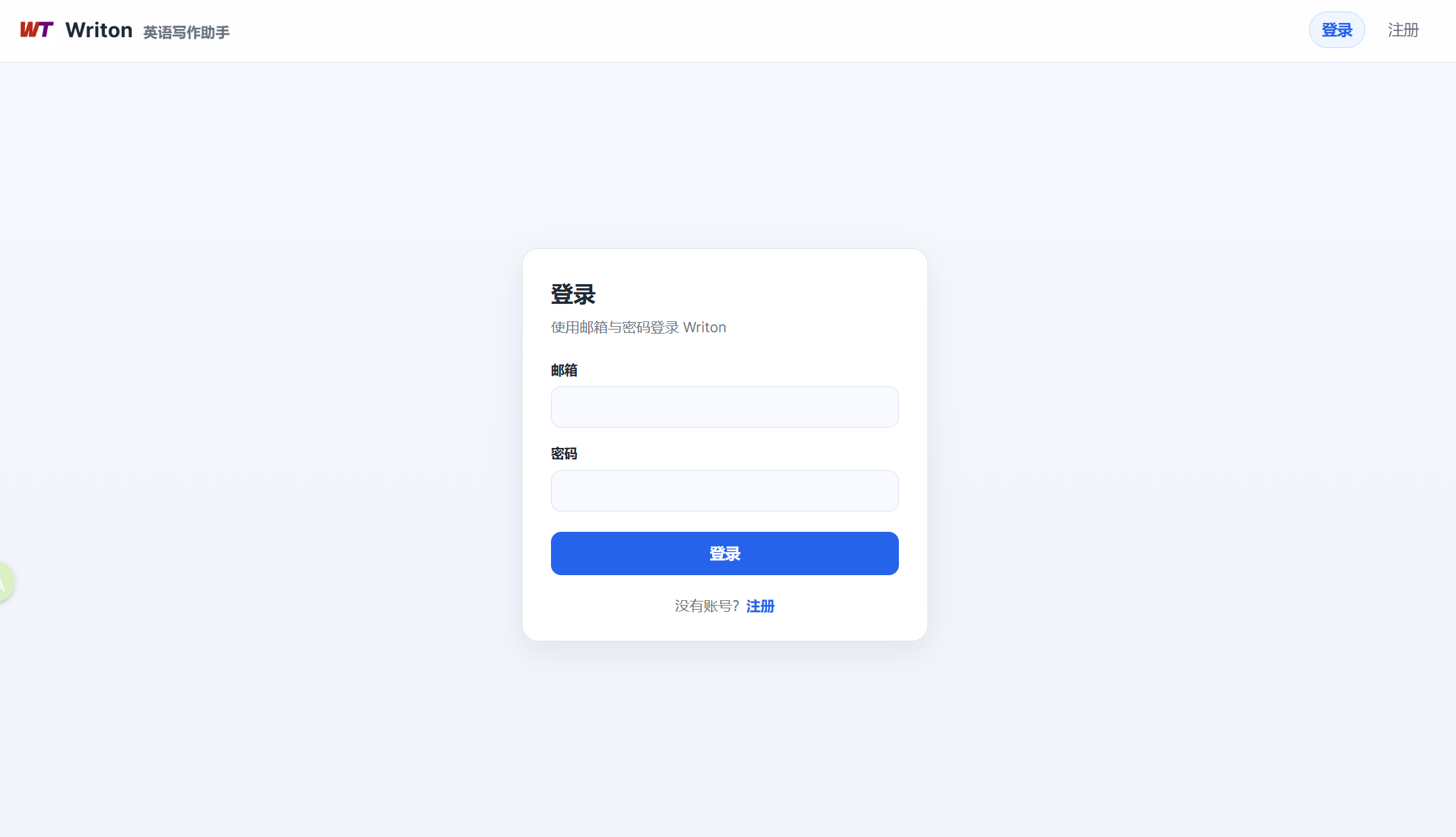
After signing in, you will enter the main interface.
2. Main Interface
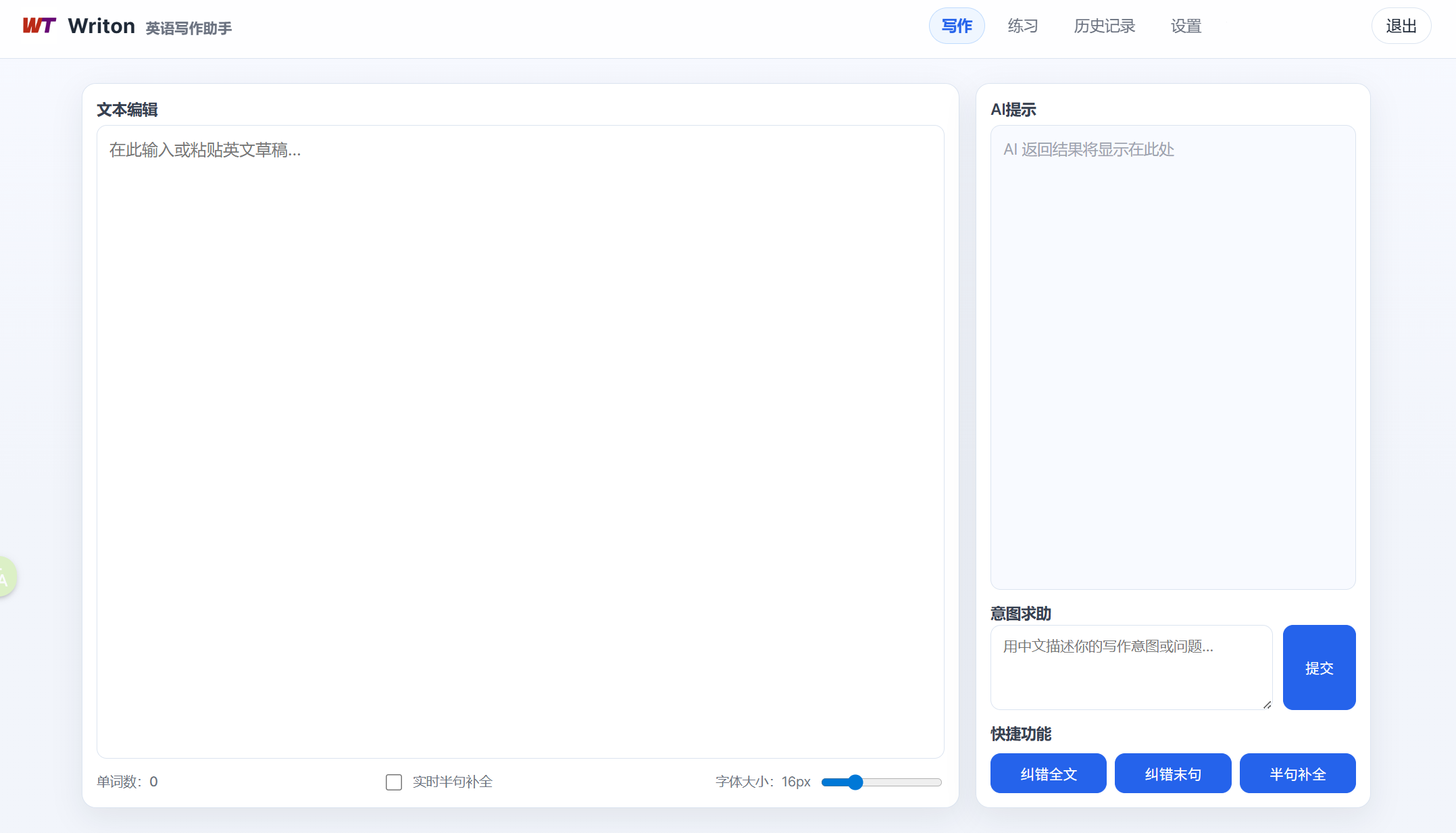
Writon mainly consists of four pages:
- Writing
- Practice
- History
- Settings
3. Writing Page
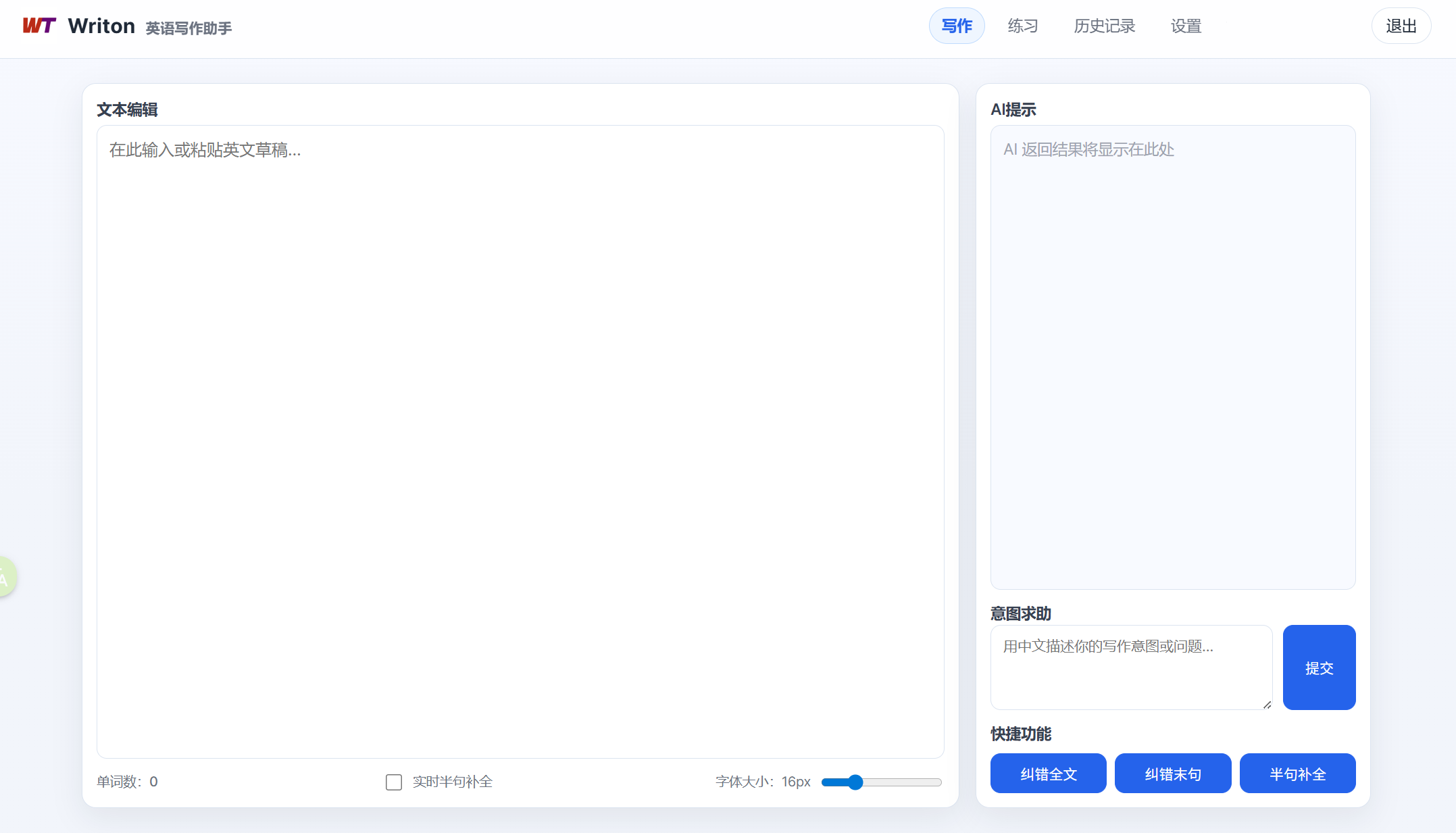
The Writing page is suitable for free writing, essays, emails, applications, journals, and other English writing tasks.
The page is usually divided into three parts:
- Left: Writing area
- Right: AI assistant
- Bottom: Action buttons
3.1 Start Writing
Simply type your English text in the writing area.
For example:
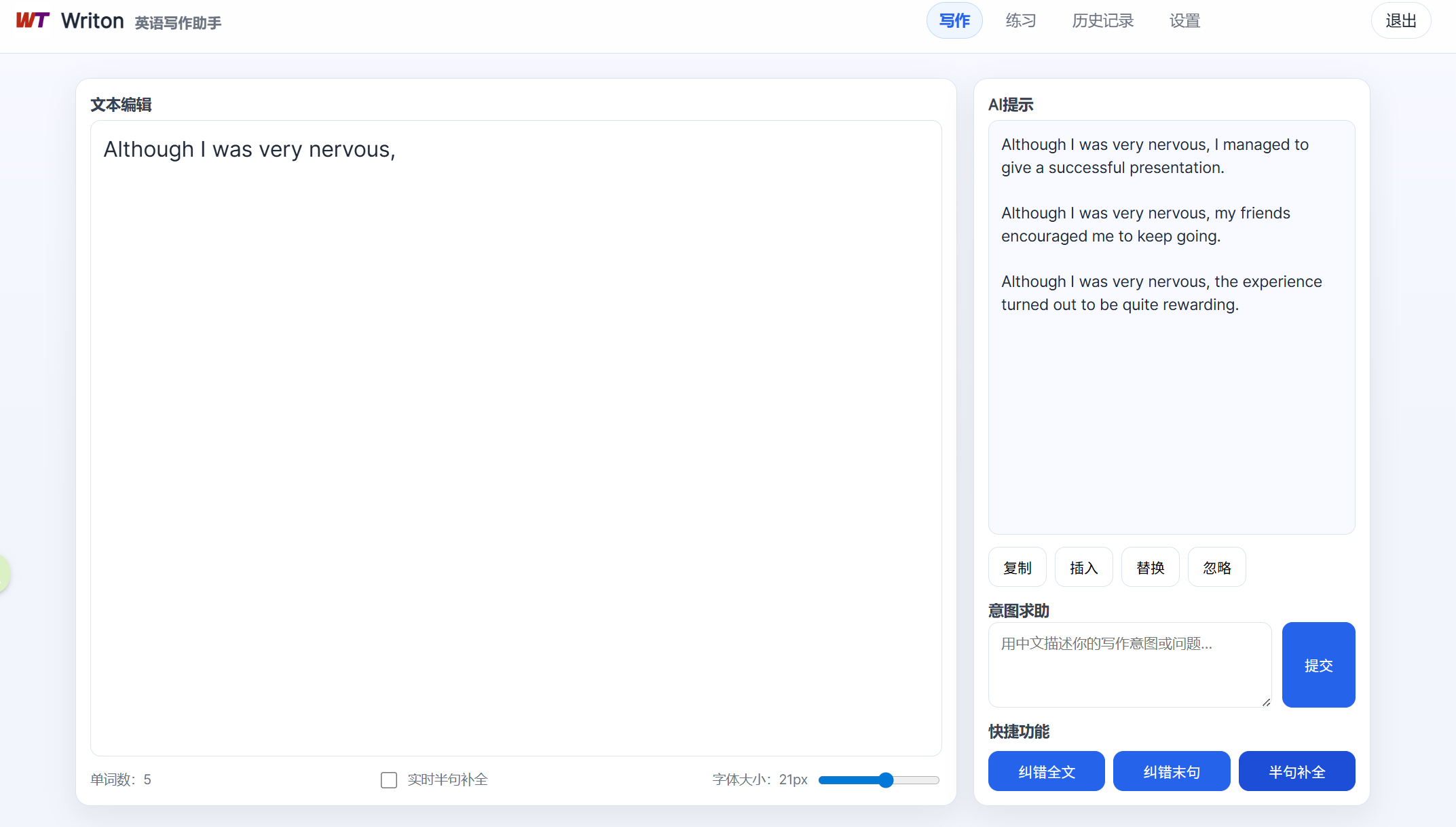
Although I was very nervous,
If you get stuck halfway through a sentence, you can use the “Sentence Completion” feature.
3.2 Sentence Completion
Click the “Complete” button, and Writon will generate several ways to continue your sentence.
For example:
Although I was very nervous, I still decided to give it a try.
You can then choose to:
- Insert into the original text
- Replace the current content
- Copy the result
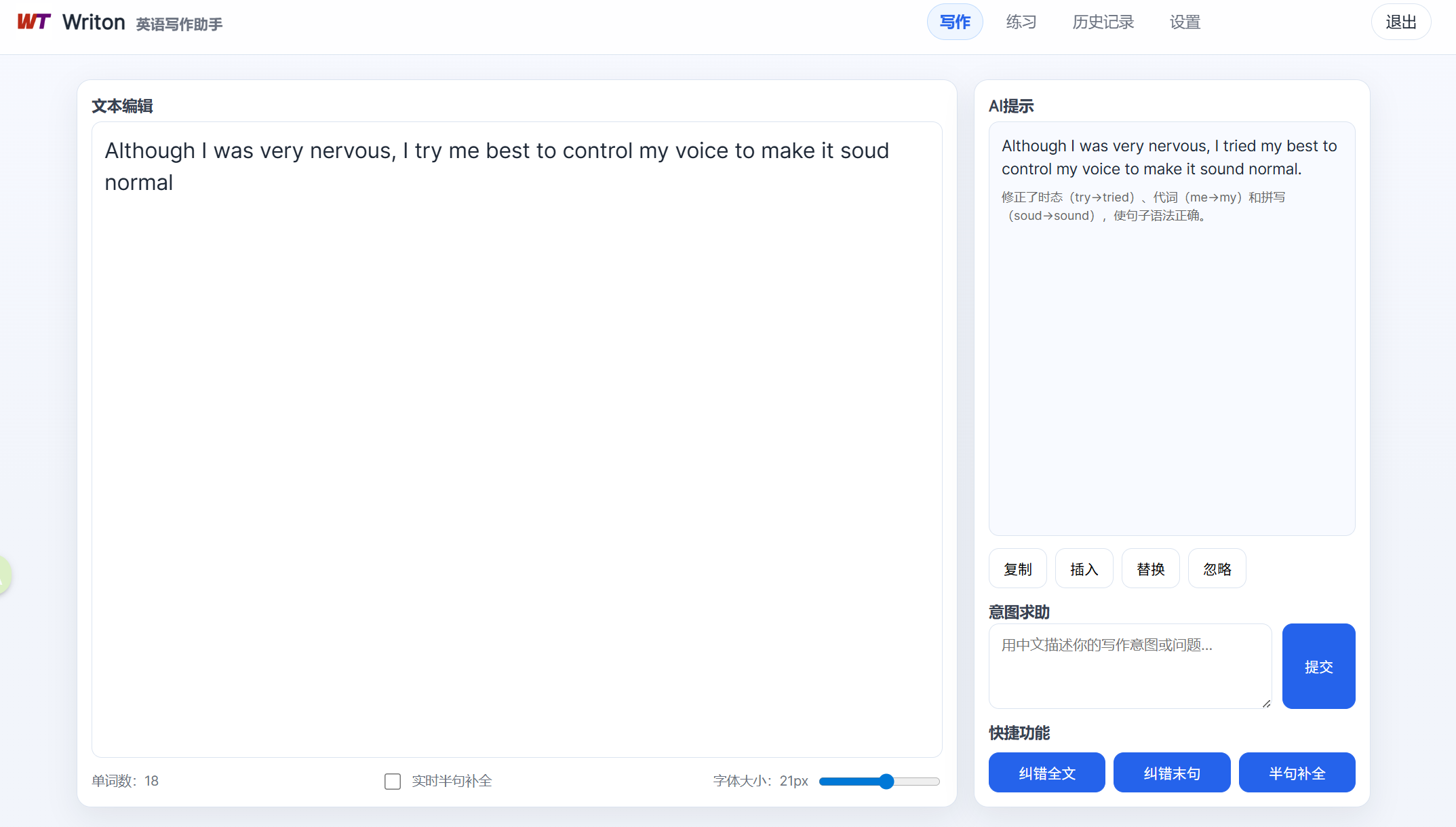
3.3 Correction
If you have already written a sentence or paragraph, you can:
- Correct only the last sentence
- Correct the entire text
Writon will provide:
- The corrected sentence
- The type of error
- An explanation in Chinese
For example:
Original:
He go to school yesterday.
Corrected:
He went to school yesterday.
Explanation:
Because the sentence contains “yesterday,” the verb should use the past tense “went.”
3.4 Chinese Intent Helper
If you know what you want to say in Chinese but do not know how to express it in English, you can type your Chinese idea into the panel on the right.
For example:
I want to express: 虽然我很紧张,但我还是决定试试看。
After clicking “Ask,” Writon will generate an English expression that fits the current context.
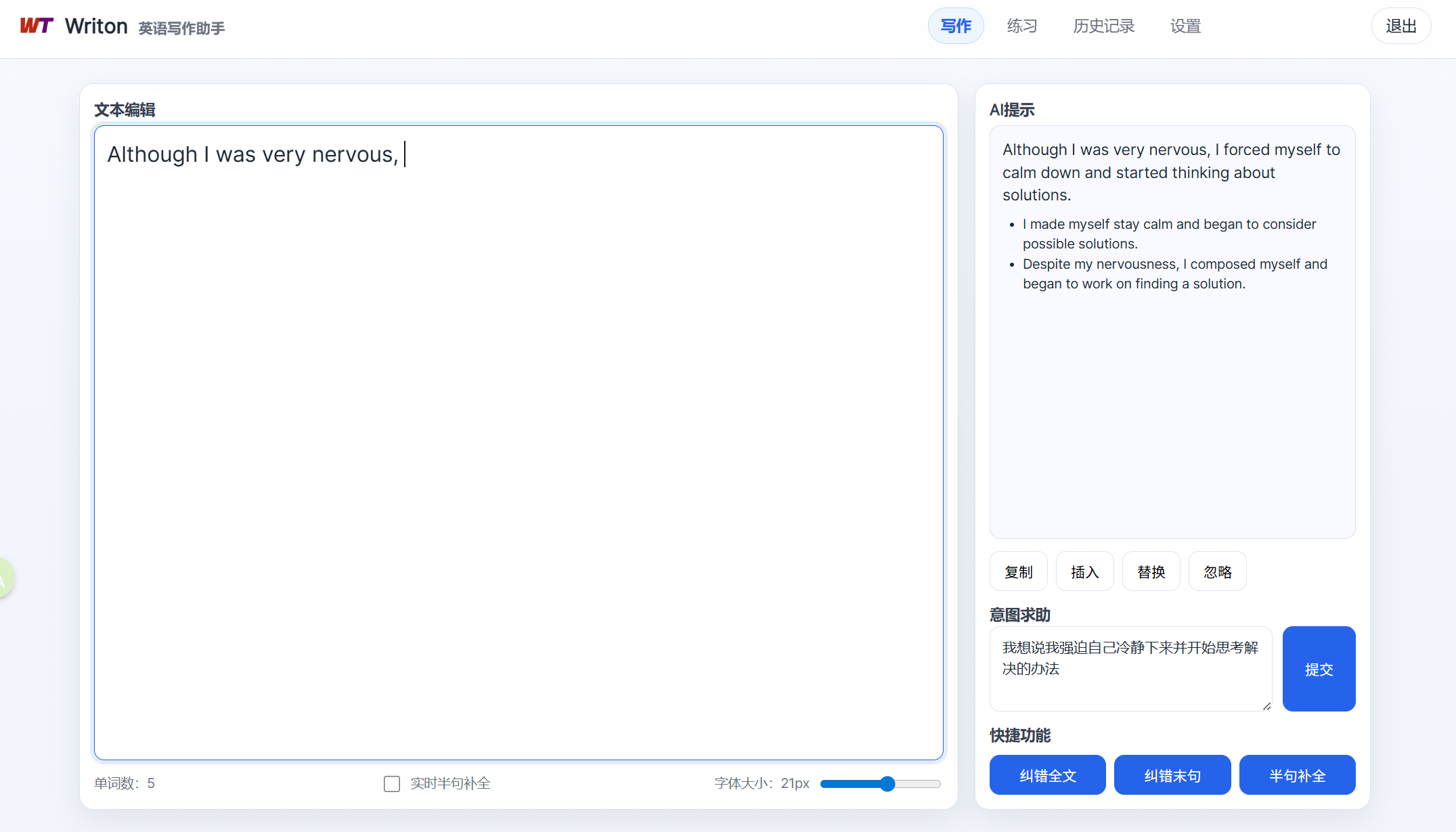
For example:
Although I was very nervous, I still decided to give it a try.
3.5 Real-Time Completion
If “Real-Time Completion” is enabled in Settings, Writon will automatically generate suggestions a few moments after you stop typing.
You can adjust the delay time in Settings (for example, 300 ms). If you do not like automatic suggestions, you can also turn this feature off.
4. Practice Page
The Practice page is suitable for:
- IELTS / TOEFL / CET writing practice
- English learners who want to improve their writing skills
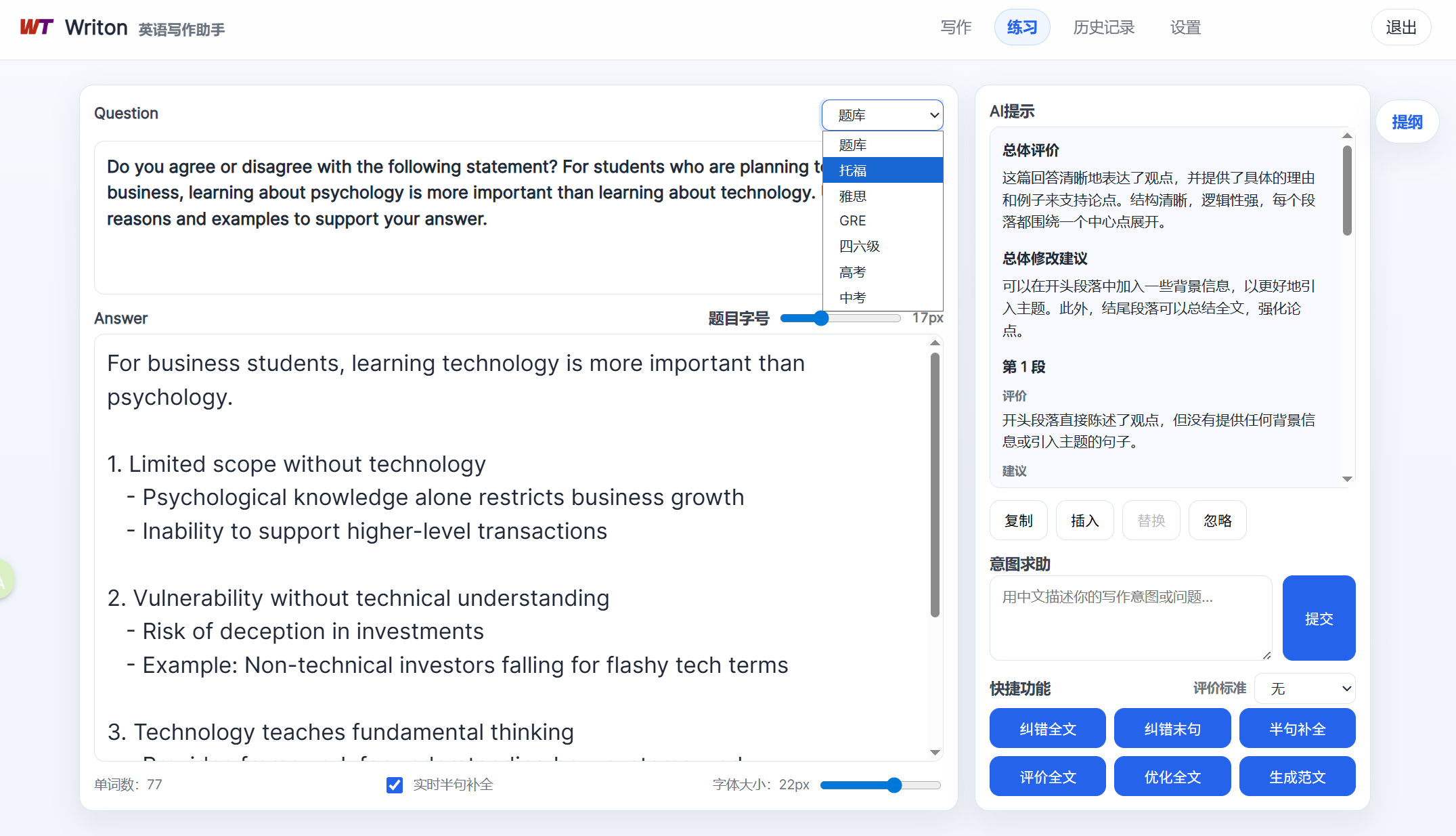
When you click a question, its text will be copied to your clipboard automatically:
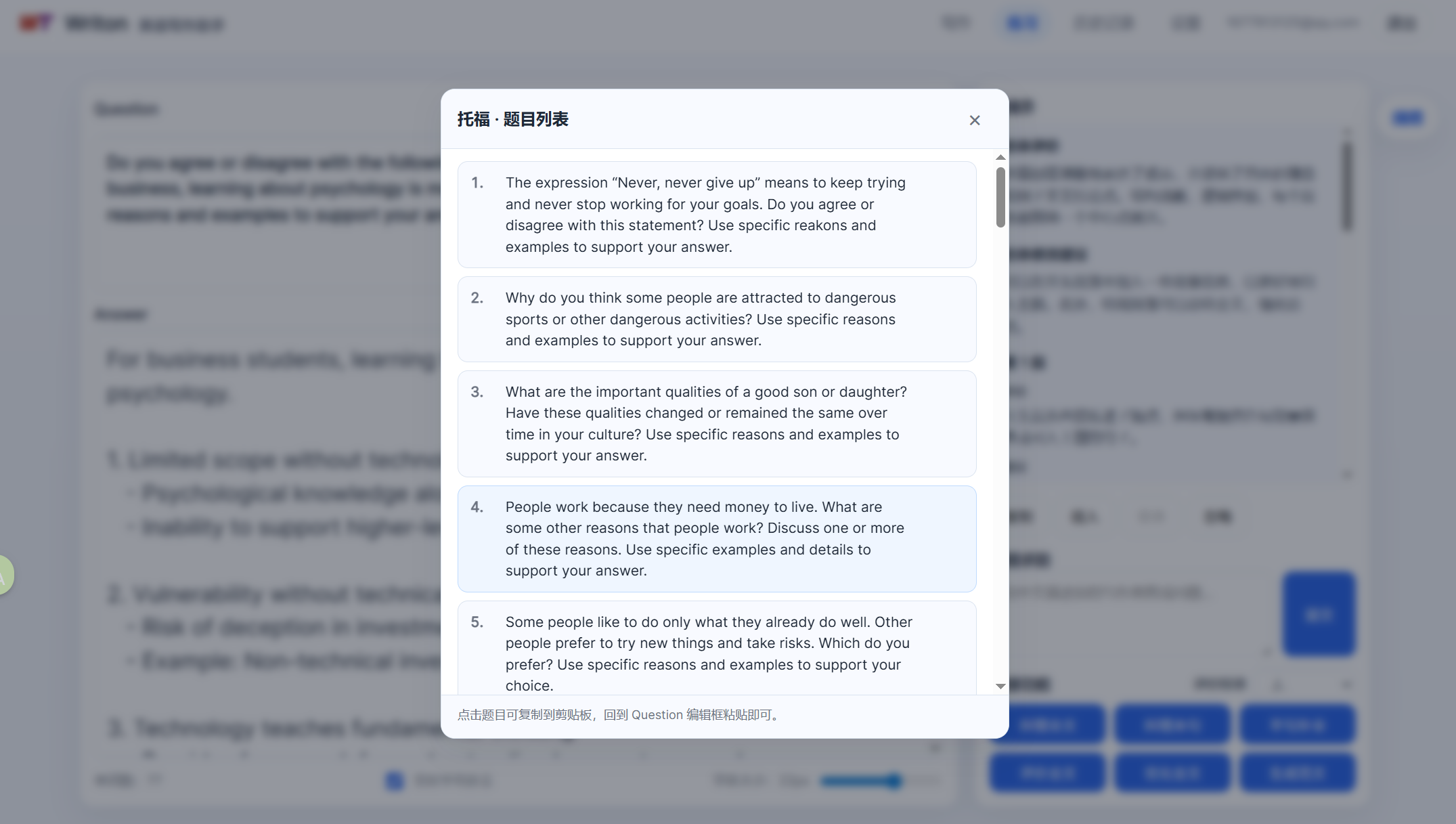
The page has two sections: Question and Answer.
4.1 Enter a Question
Type a writing prompt into the Question section.
For example:
Describe a challenge you faced and how you overcame it.
Then write your response in the Answer section.
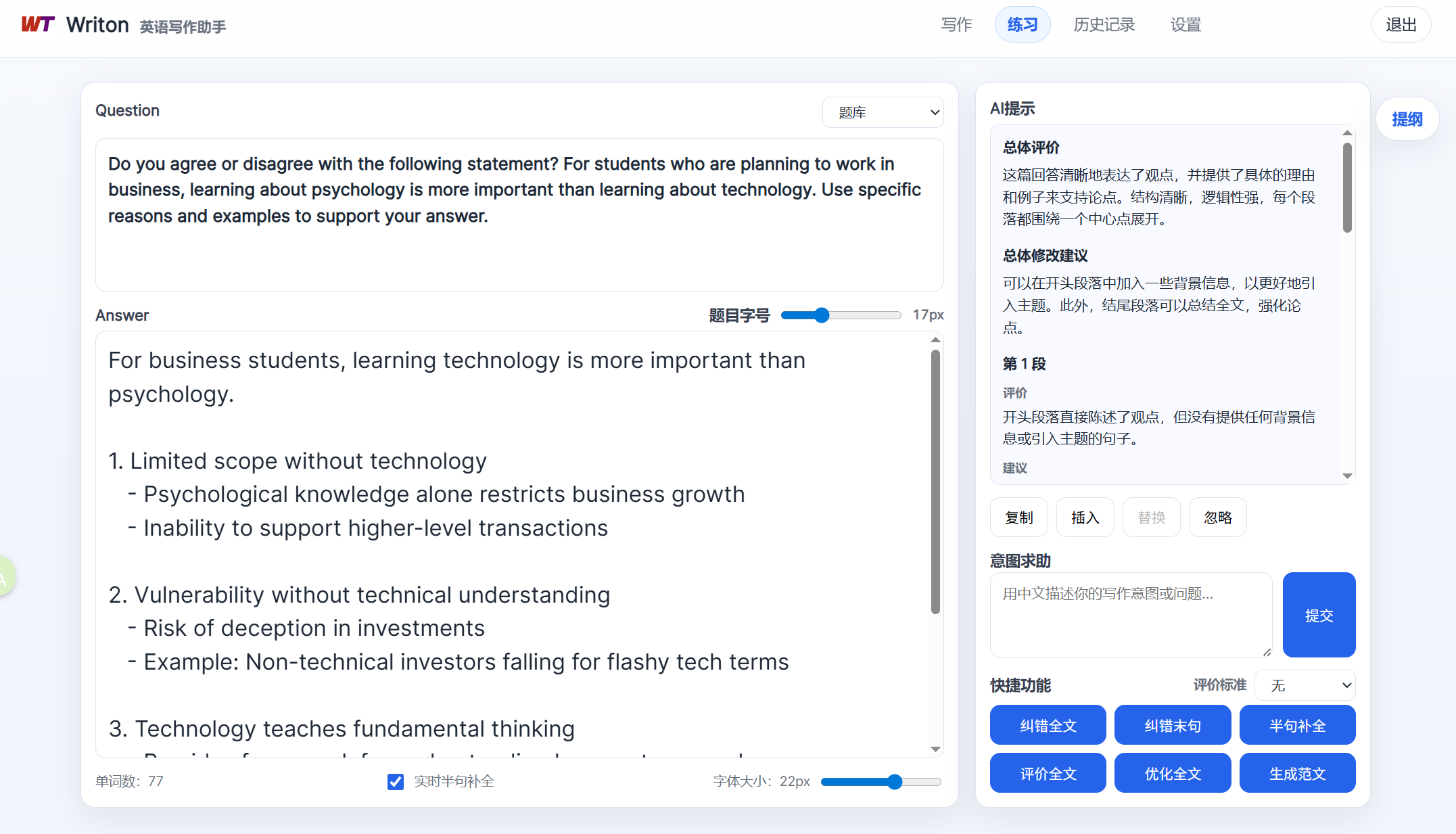
4.2 Evaluate the Full Text
Click “Evaluate Full Text,” and Writon will analyze your writing from several perspectives, including:
- Grammar
- Vocabulary
- Coherence
- Naturalness
- Areas for improvement
You can also specify a scoring standard, such as TOEFL scoring criteria. In that case, Writon will use a predefined rubric to evaluate your writing.
4.3 Improve the Full Text
Click “Improve Full Text,” and Writon will rewrite your text to make it more natural and fluent while keeping your original meaning.
4.4 Generate a Sample Essay
If you do not know how to answer the question, click “Generate Sample Essay.”
Writon will automatically create a sample response based on the question.
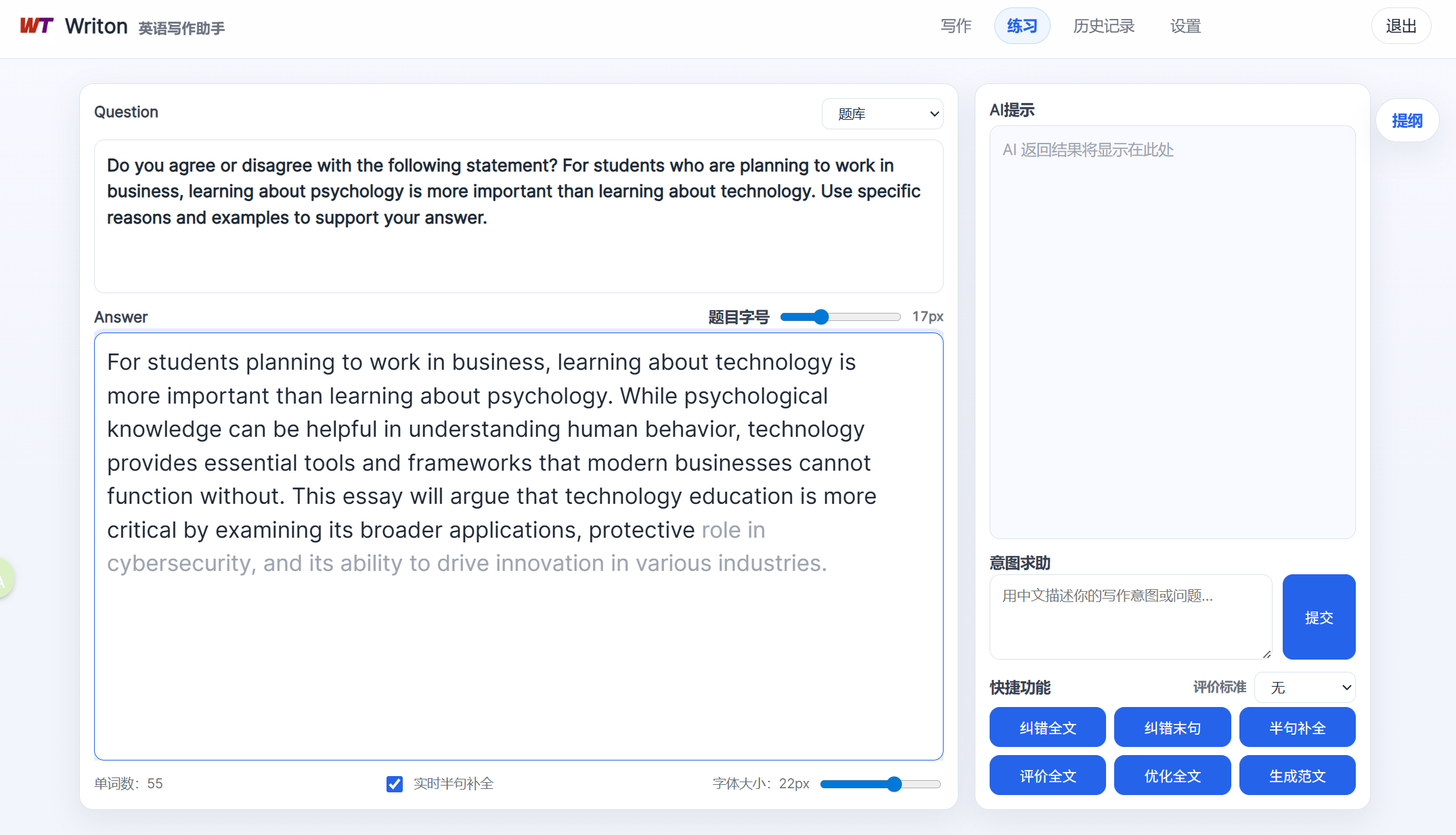
Note: It is recommended to write your own answer first, then use the sample essay for reference. Do not simply copy and submit it.
5. History
On the “History” page, you can review all of your previous AI requests.
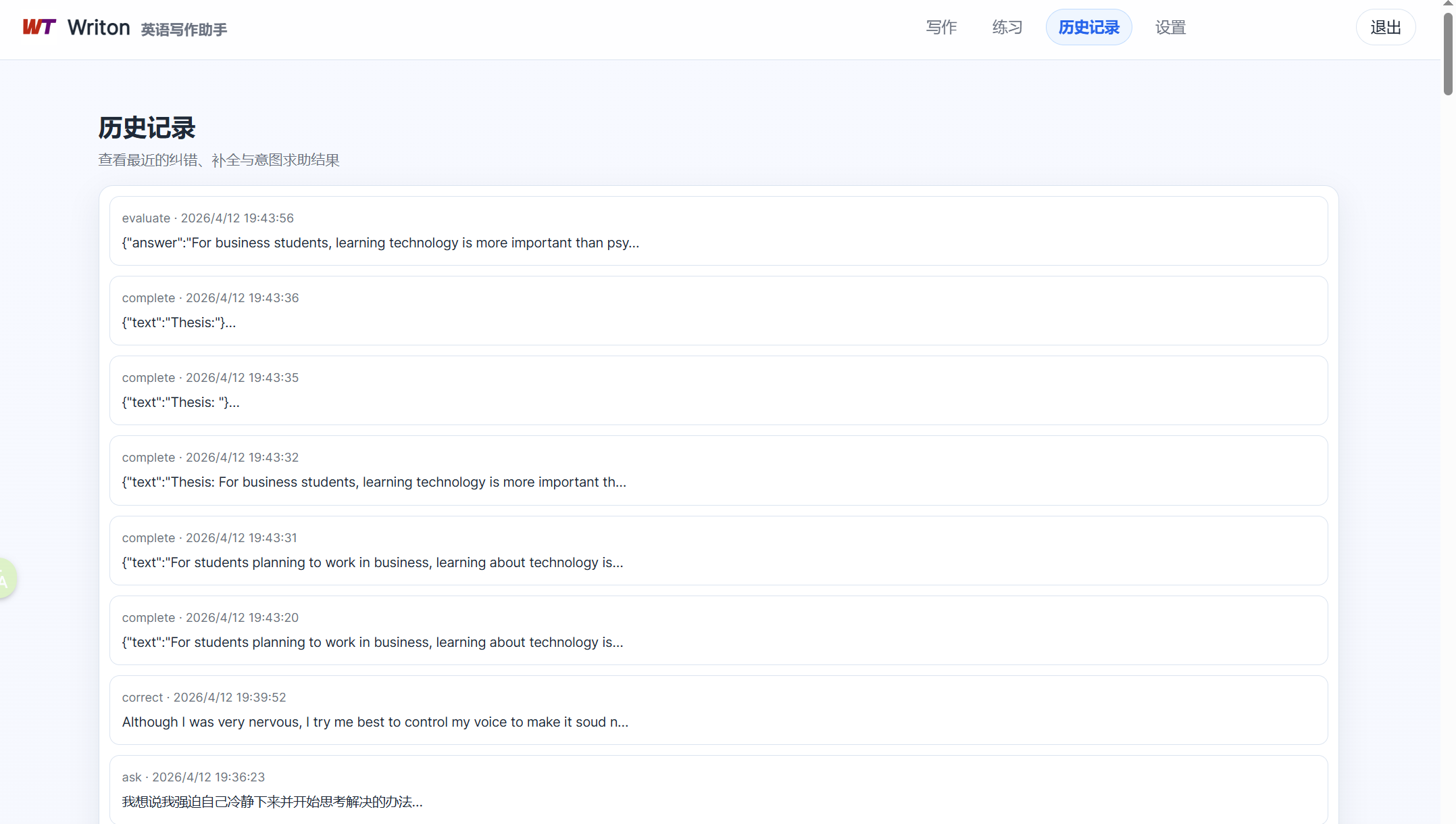
This is useful for reviewing mistakes you have made before and learning common expressions.
6. Settings
On the “Settings” page, you can adjust Writon’s default behavior.
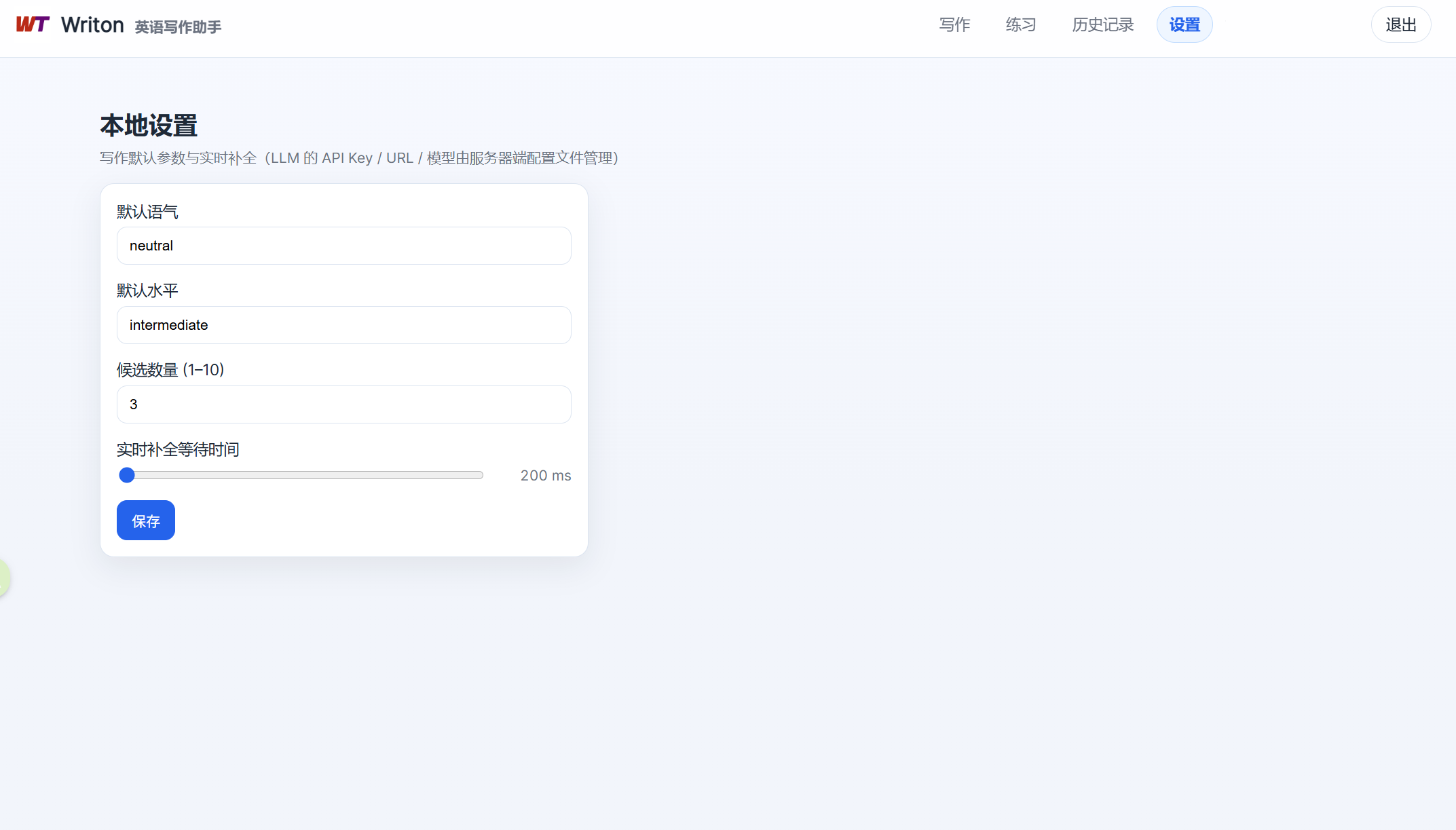
You can configure:
- Number of suggestions
- Delay time for real-time completion
- Default writing style
7. Common Use Cases
-
Free Writing
- Write freely on the Writing page
- Use “Complete” when you get stuck
- Use “Correct” or “Improve Full Text” after you finish
-
Writing Practice
- Enter a question on the Practice page
- Try to answer it by yourself first
- Use “Evaluate Full Text” to see what needs improvement
- Use “Generate Sample Essay” for reference
Writon works best when you use it not to let AI write for you, but to learn while you write.
| English | 中文 |
体验地址
http://154.36.167.158:5173
Writon 使用指南
欢迎使用 Writon。
Writon 是一个面向英语学习者的 AI 写作助手,帮助你在写英文时:
- 纠正错误
- 补全卡住的句子
- 把中文想法转成自然英文
- 优化整段内容
- 练习考试、作文、邮件等写作场景
1. 首次使用
打开网页后,先注册并登录账号。
注册成功后,会进入主界面。
2. 主界面介绍
Writon 主要分为四个页面:
- 写作
- 练习
- 历史记录
- 设置
3. 写作页
写作页适合你自由写英文、写作文、写邮件、写申请、写日记等。
页面通常由三部分组成:
- 左侧:写作区
- 右侧:AI 助手
- 底部:操作按钮
3.1 开始写作
直接在左侧输入英文。
例如:
Although I was very nervous,
当你写到一半卡住时,可以使用“半句补全”功能。
3.2 半句补全
点击“补全”按钮,Writon 会根据你已经写的内容,生成多个续写版本。
例如:
Although I was very nervous, I still decided to give it a try.
你可以点击:
- 插入到原文
- 替换当前内容
- 复制
3.3 纠错
如果你已经写好一句或一段英文,可以:
- 对末尾的句子进行纠错
- 对全文进行纠错
Writon 会返回:
- 修改后的句子
- 错误类型
- 中文解释
例如:
原句:
He go to school yesterday.
修改后:
He went to school yesterday.
解释:
因为句子中有 yesterday,所以动词需要使用过去式 went。
3.4 中文意图求助
如果你知道自己想表达什么,但不会写英文,可以直接在右侧输入中文。
例如:
我想表达:虽然我很紧张,但我还是决定试试看。
点击“求助”后,Writon 会生成适合当前上下文的英文表达。
例如:
Although I was very nervous, I still decided to give it a try.
3.5 实时补全
如果你在设置中开启了“实时补全”,Writon 会在你停止输入几秒后,自动给出建议。
你可以在设置中调整等待时间(例如300ms);如果你不喜欢自动提示,也可以关闭。
4. 练习页
练习页适合:
- 雅思 / 托福 / 四六级考试练习
- 英语学习者提高英语写作技能
点击题目后会自动复制题目文本到剪贴板:
页面分为两部分:Question(题目)和Answer(你的回答)
4.1 输入题目
在 Question 中输入题目,例如:
Describe a challenge you faced and how you overcame it.
然后在 Answer 中写你的回答。
4.2 评价全文
点击“评价全文”,Writon 会从多个角度分析你的回答,语法、词汇、连贯性、表达自然程度、可以改进的地方;你也可以指定评分标准,如托福评分准则,此时Writon会载入预先设定的评分细则对你的文稿进行评价。
4.3 优化全文
点击“优化全文”,Writon 会在保留你原意的基础上,把全文写得更自然、更流畅。
4.4 生成范文
如果你不知道该怎么写,可以点击“生成范文”。
Writon 会根据题目自动生成一篇参考答案。
注意:建议先自己写,再参考范文,不建议直接复制范文提交
5. 历史记录
在“历史记录”页面,你可以查看之前所有 AI 请求。
适合回顾自己曾经犯过的错误和常见表达。
6. 设置
在“设置”页面,你可以调整 Writon 的默认行为。
可以设置:
- 候选结果数量
- 实时补全等待时间
- 默认写作风格
7. 常见使用场景
- 自由写作
- 在写作页自由写作,当卡住时用“补全”
- 写完后用“纠错”或“优化全文”
- 练习英语写作
- 在练习页输入题目,先尝试自己回答
- 用“评价全文”查看问题
- “生成范文”提供参考
Writon 最适合的使用方式,不是“让 AI 替你写”,而是“边写边学”。